How to Integrate Your CRM to QuickBooks Using Slipstream
What to Expect
Time Required
5-10 minutes
Total Steps
5 Simple Steps
You'll Need
- CRM credentials
- QuickBooks login
- Payment method
Outcome
Automated invoice sync from CRM to QuickBooks
If you're using a CRM and QuickBooks together, you know that keeping your invoicing data in sync can be time-consuming and error-prone.
Slipstream is a fully customizable integration platform that syncs invoices from your CRM to QuickBooks on your terms. We offer a white glove onboarding process and work with you to ensure your integration is customized to your specific business needs (learn about the full feature set of Slipstream here).
Here's a high-level overview of the steps we'll take to get you set up:
Process Overview
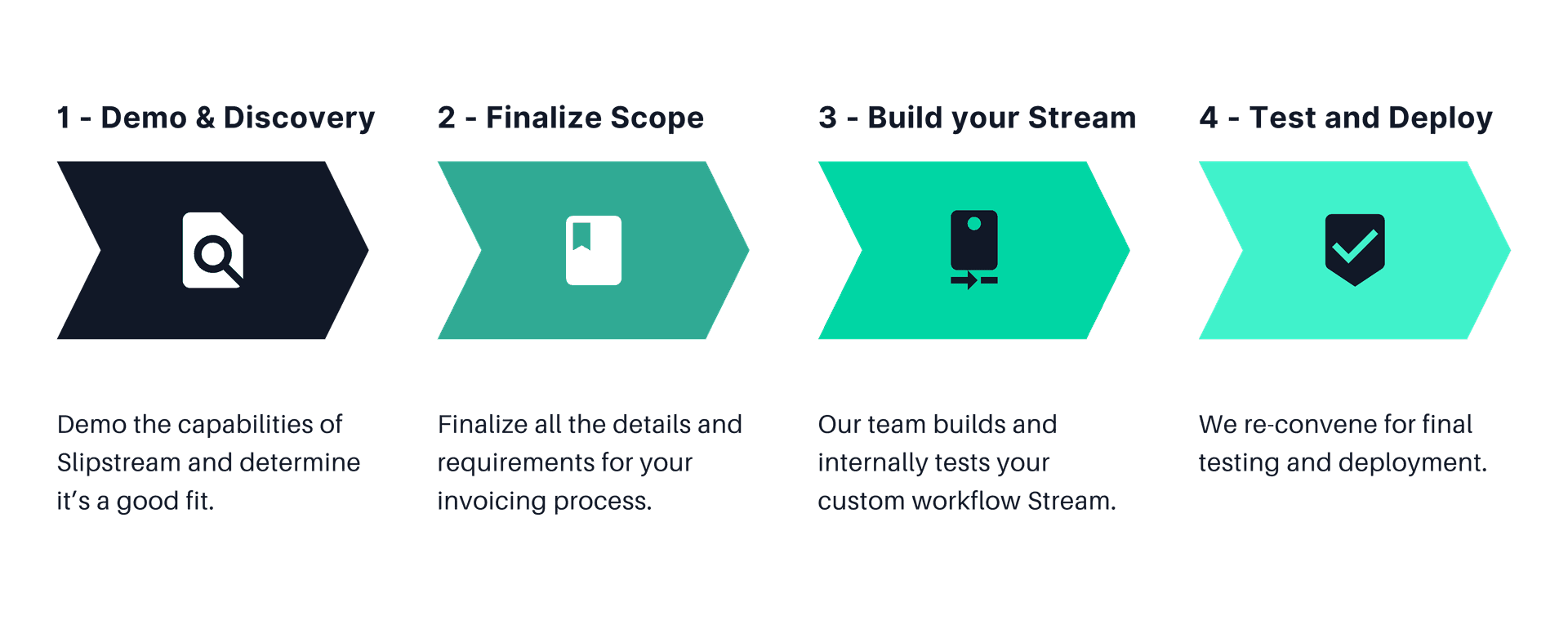
- Determine your requirements on the first call with our Invoice Process Questionnaire
- Review and finalize a Scope of Work document outlining the requirements for your integration
- Our team customizes the integration for your CRM inside the Slipstream platform. We'll help with any custom fields or properties required
- We review and test the integration with you. When you approve the setup, we walk you through the signup process below
Not sure if you're ready to automate invoicing?
We've got a free quiz to help you determine whether or not you are.
Take the Readiness QuizThe Slipstream Connection Process
In order to build your integration and send data between your CRM and QuickBooks, Slipstream needs to connect to both platforms.
Here's a step-by-step walkthrough of the connection process:
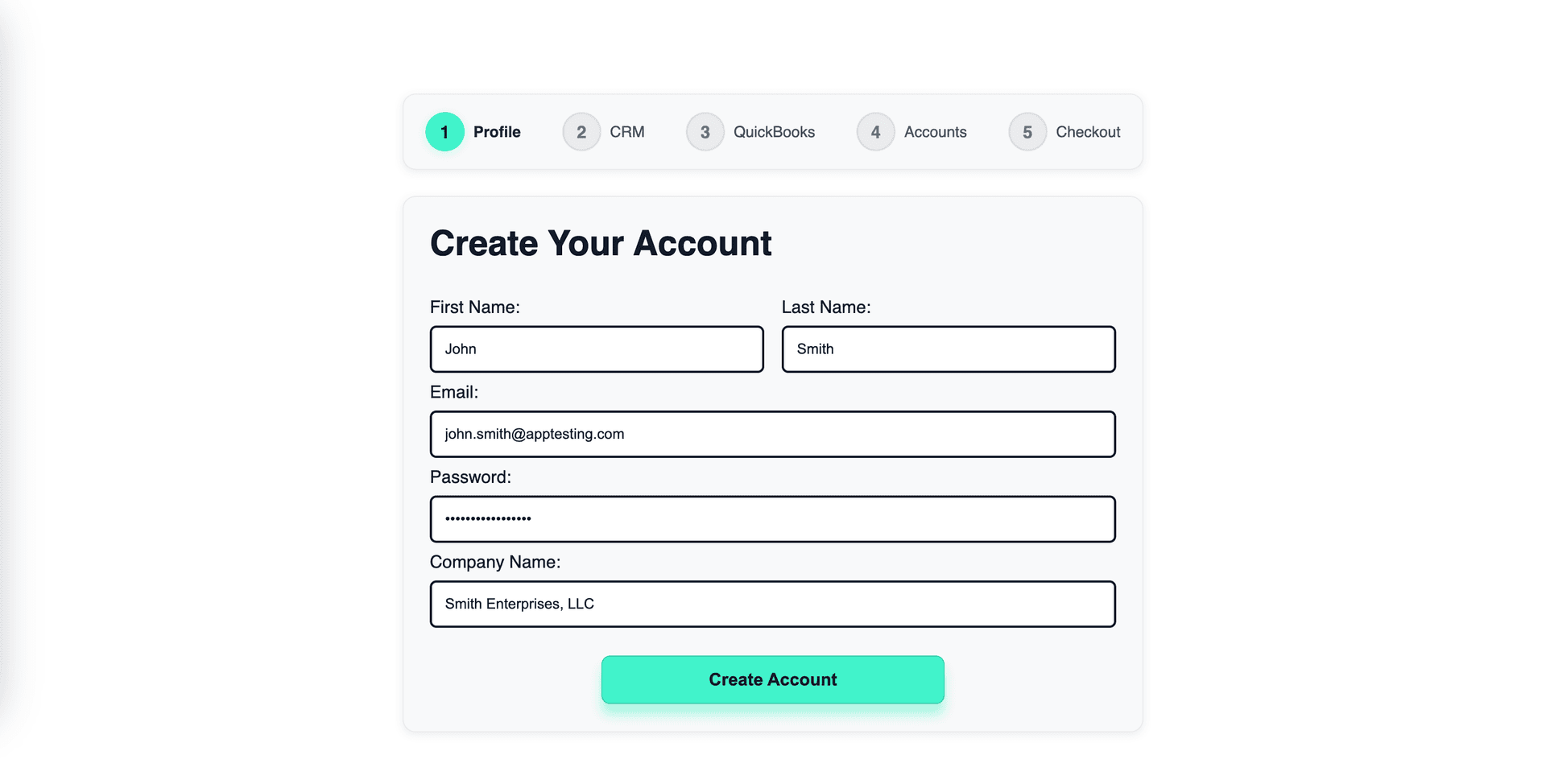
We'll gather some basic information about you to create your account profile and assign your integration to you.
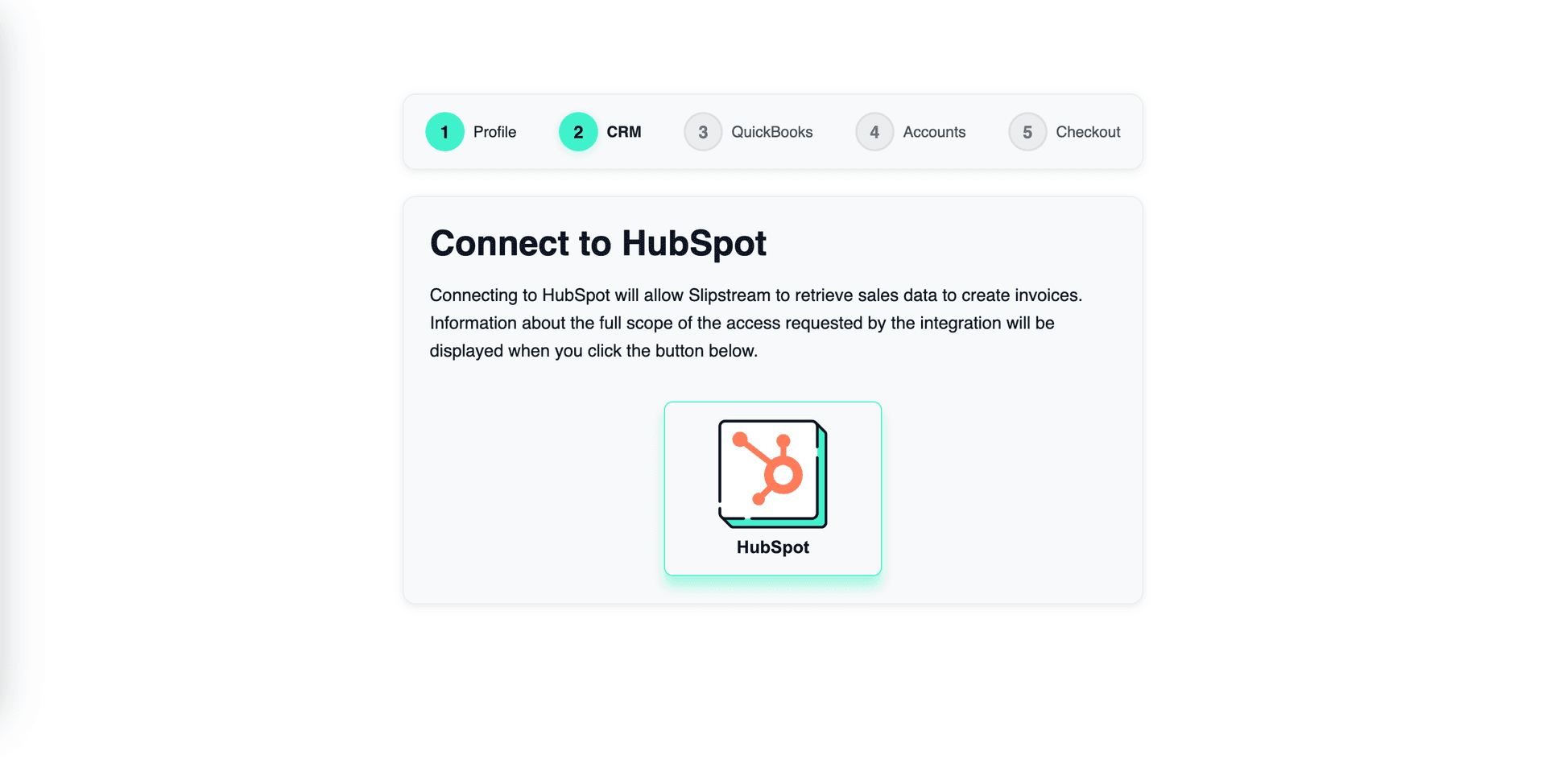
We'll connect Slipstream to your CRM account to start the integration process. Once connected, the system will receive event notifications from your CRM based on your custom configuration (such as when invoices are created or deals close).
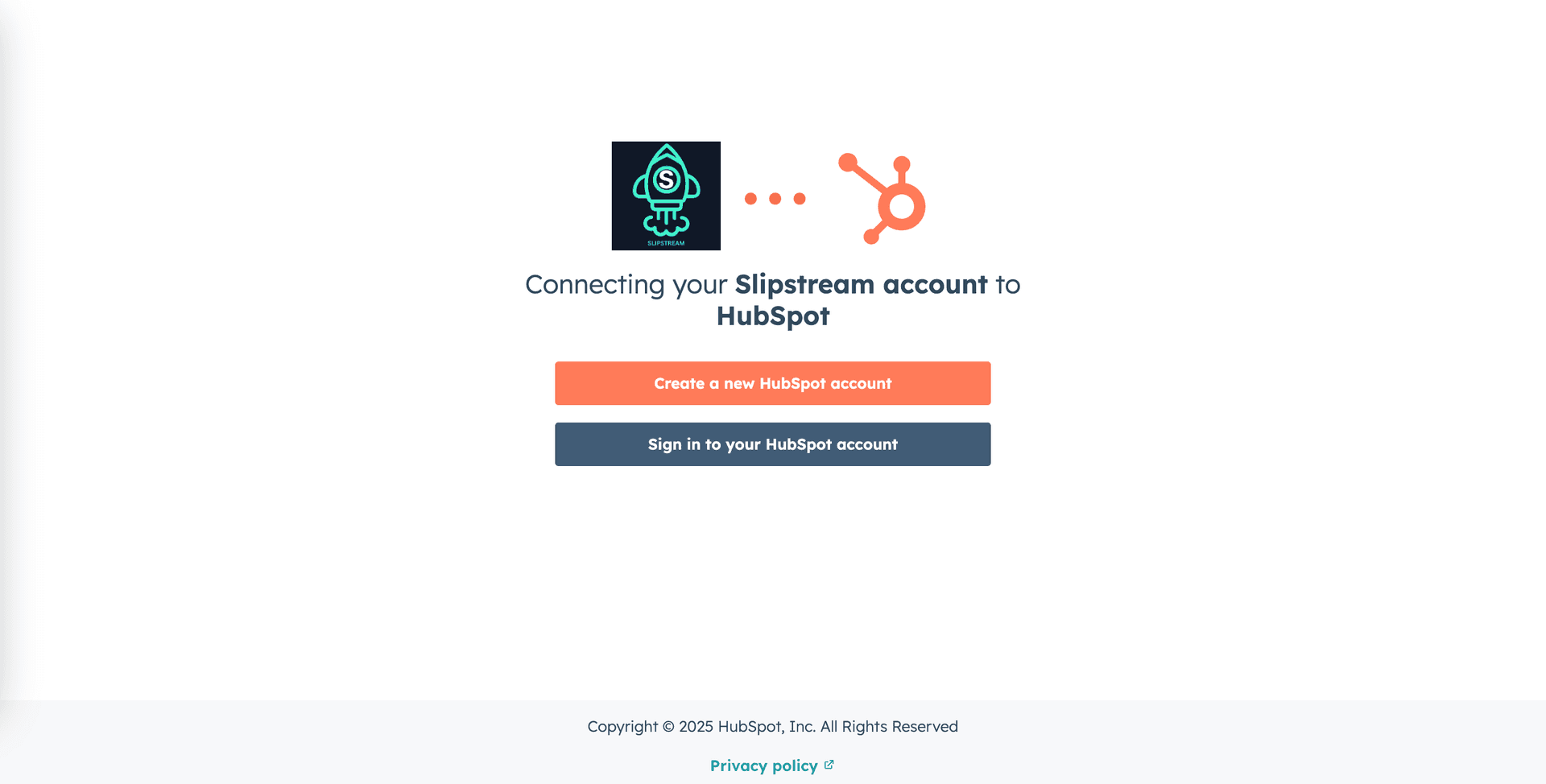
You'll be redirected to your CRM's login page to authenticate.
If you have multiple accounts or environments in your CRM, you'll be asked to select the one you want to connect to Slipstream.
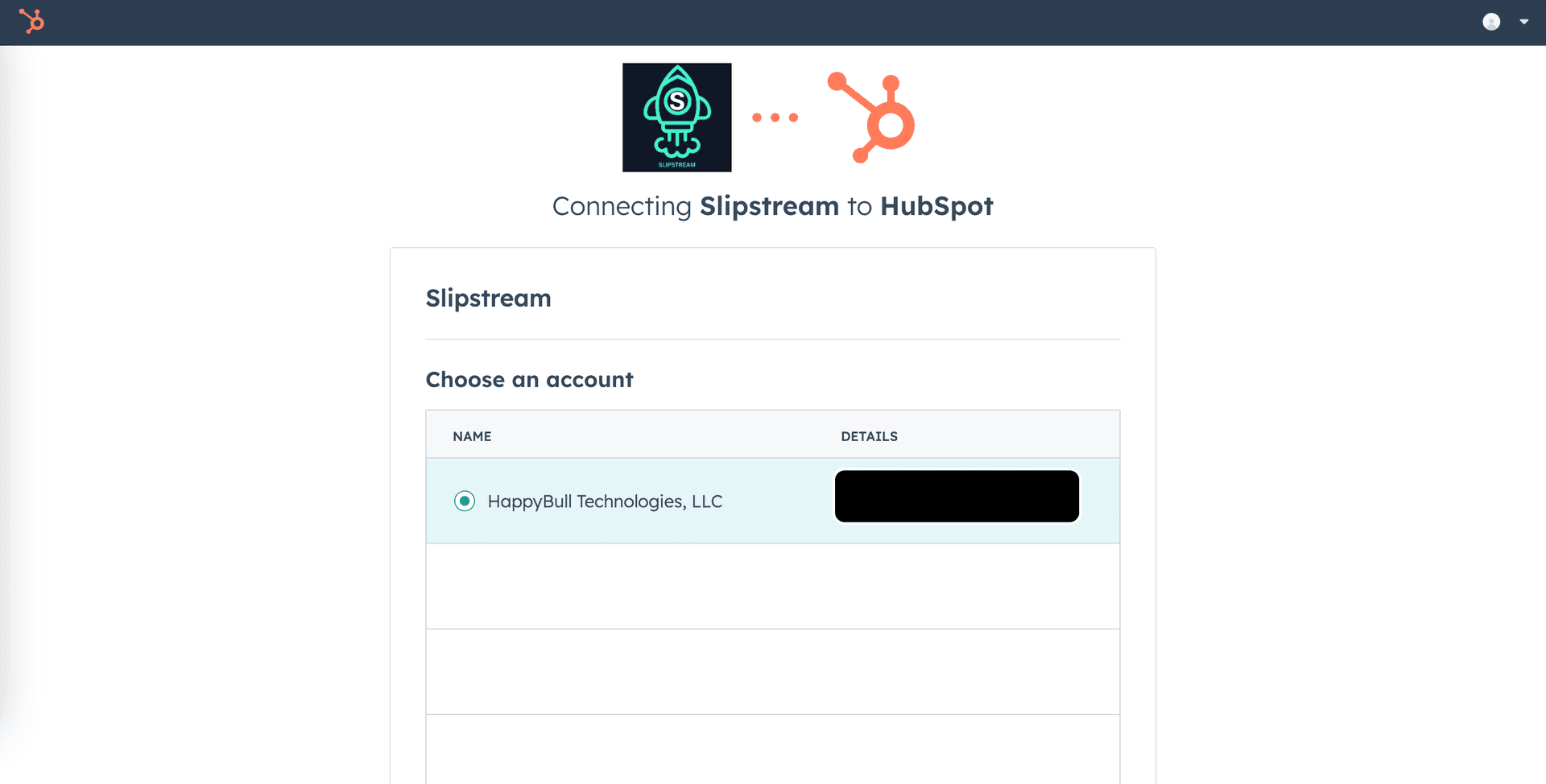
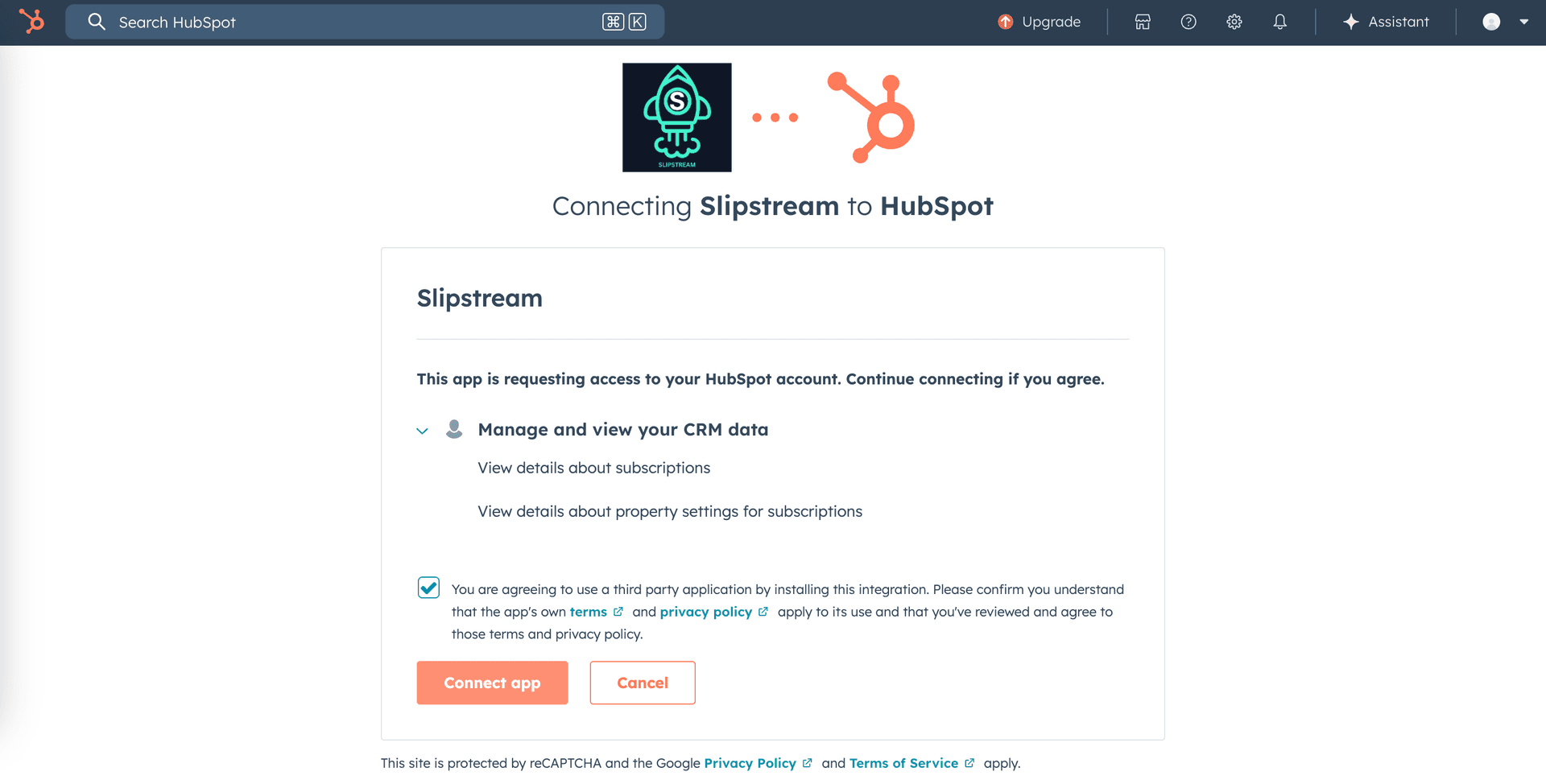
You'll be asked to approve the permissions required for Slipstream. We only request access to the scopes required to streamline your invoicing process and never access data for outside purposes. We don't store your CRM data in our database—only activity logs and details required to confirm the integration is working properly.
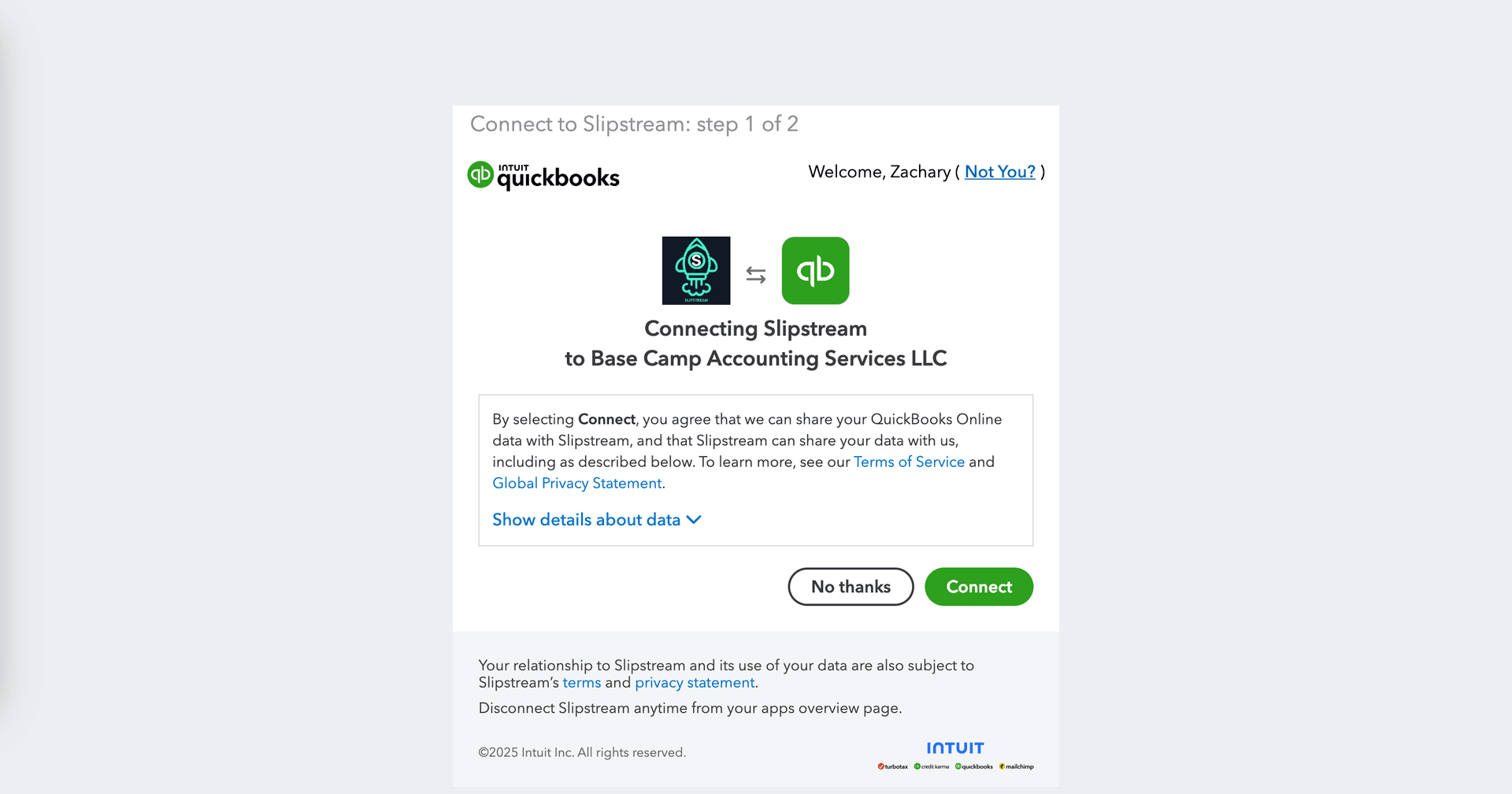
Slipstream connects to your QuickBooks account to create and send invoices automatically. Once connected and your workflow is published, the integration creates invoices in QuickBooks based on the criteria we configured for you.
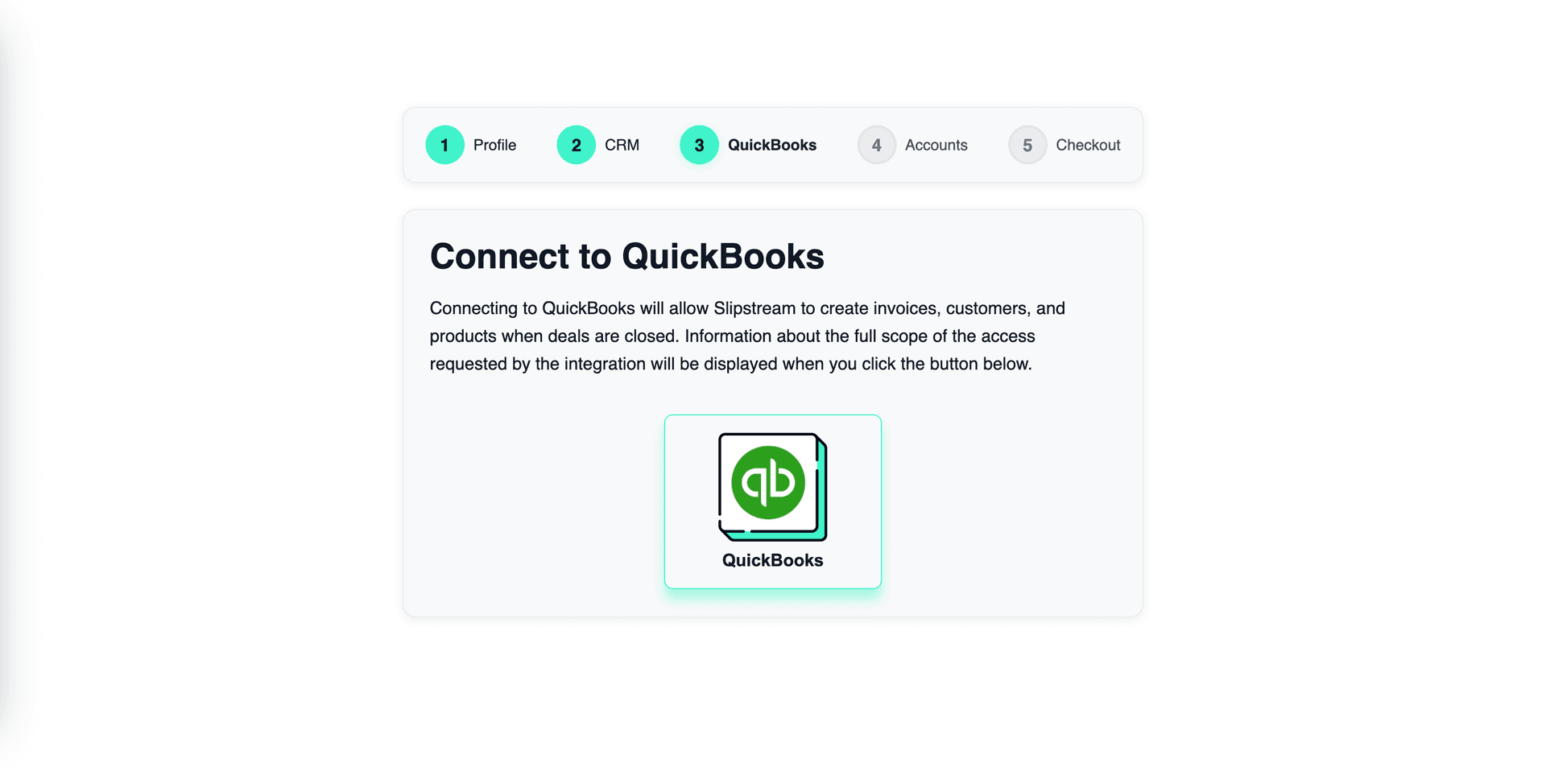
You'll be redirected to the QuickBooks login page.
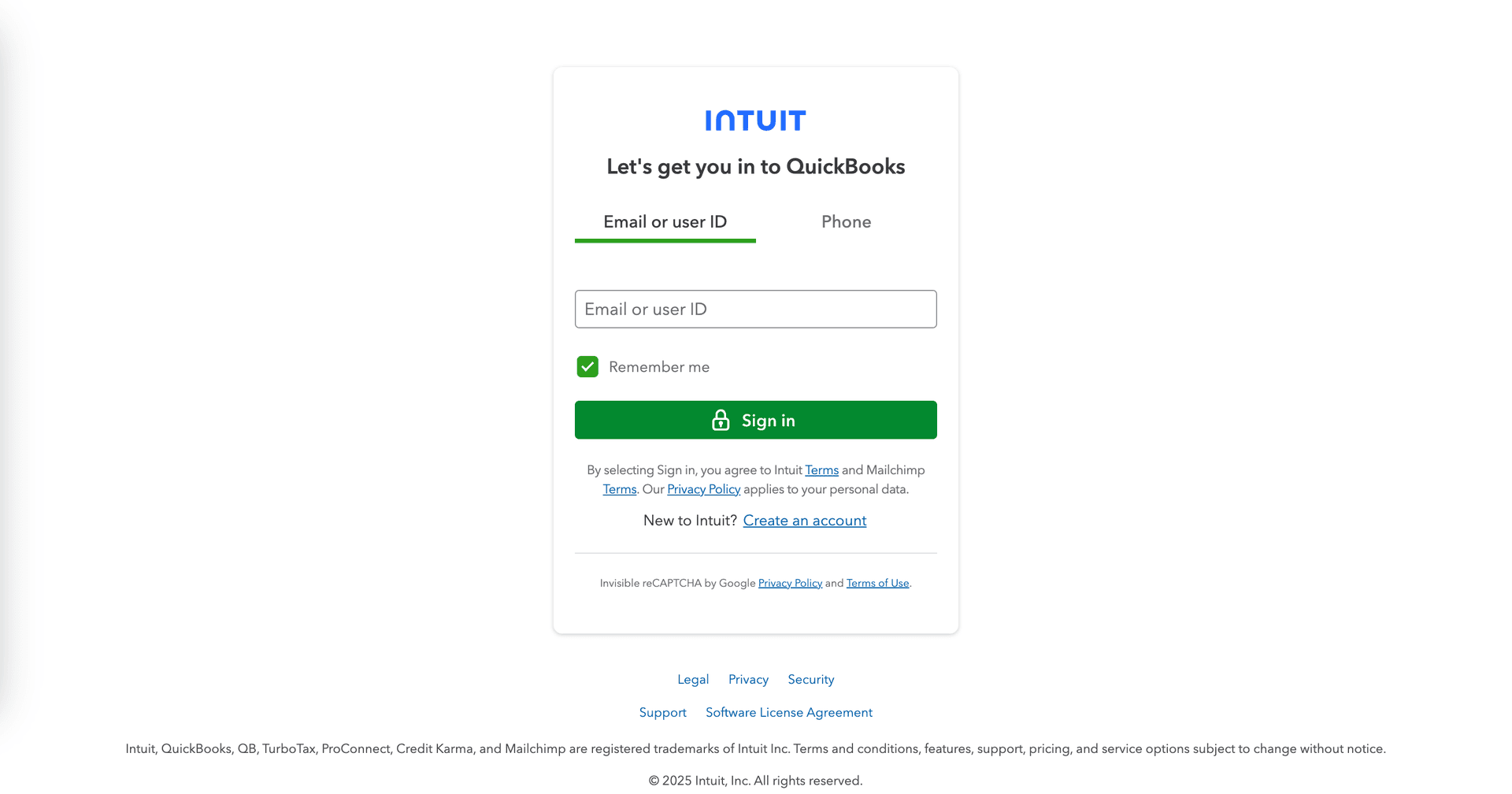
After logging in, you'll approve the permissions required for Slipstream. We only request access to the scopes needed to streamline your invoicing process. We do not store any financial data from QuickBooks—only activity logs and details required to confirm the integration is working properly.
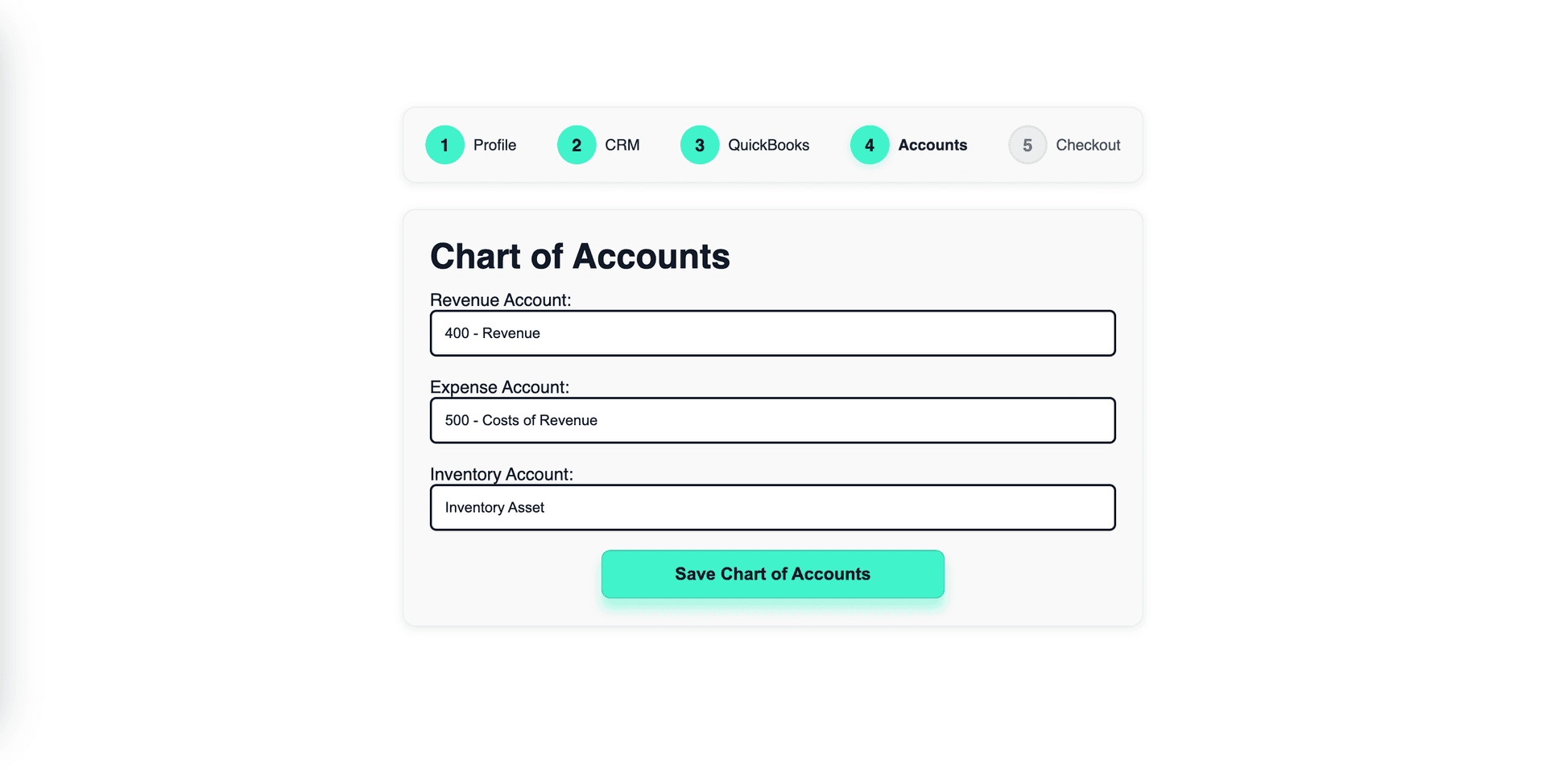
As part of the integration, Slipstream creates new products and services in QuickBooks for you. QuickBooks requires a Revenue Account, Expense Account, and Inventory Account for new products and services.
You'll select your Chart of Accounts options so Slipstream has default values to provide to QuickBooks when creating new items.
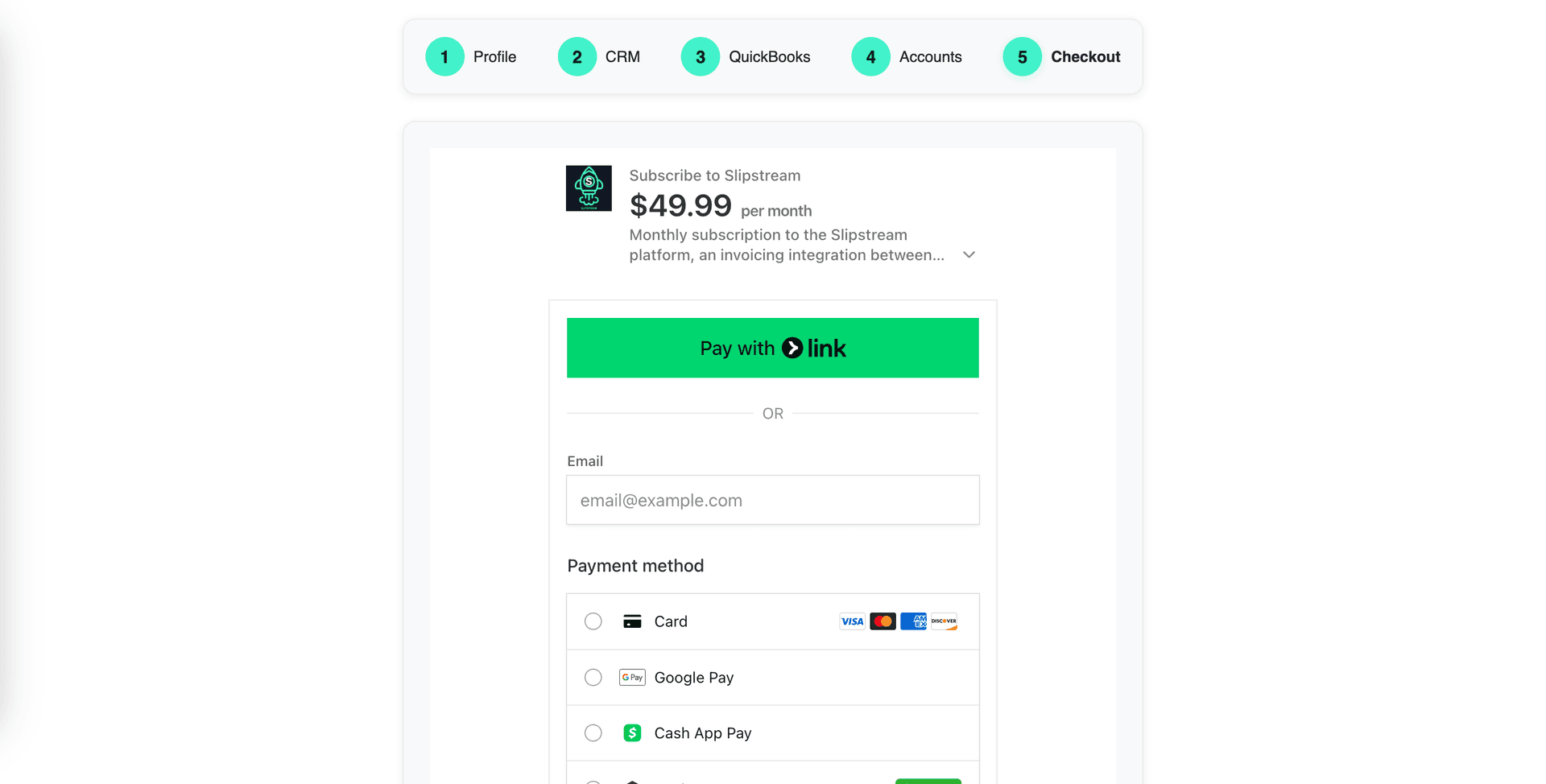
Once you've completed the above steps, you'll be redirected to the checkout page. Here you'll provide payment information for your subscription and complete the setup process.
Disconnecting Your Integration
If you need to disconnect your integration, you can do so by logging into the Slipstream dashboard, navigating to settings, and selecting "Disconnect" for your CRM and QuickBooks connections. You can also submit a support request to contact@slipstreamautomations.com and we'll cancel your subscription.
Want to see a personalized demo?
Book your free demo now to get started with automated invoicing from your CRM to QuickBooks.