


Track every Pipedrive sync
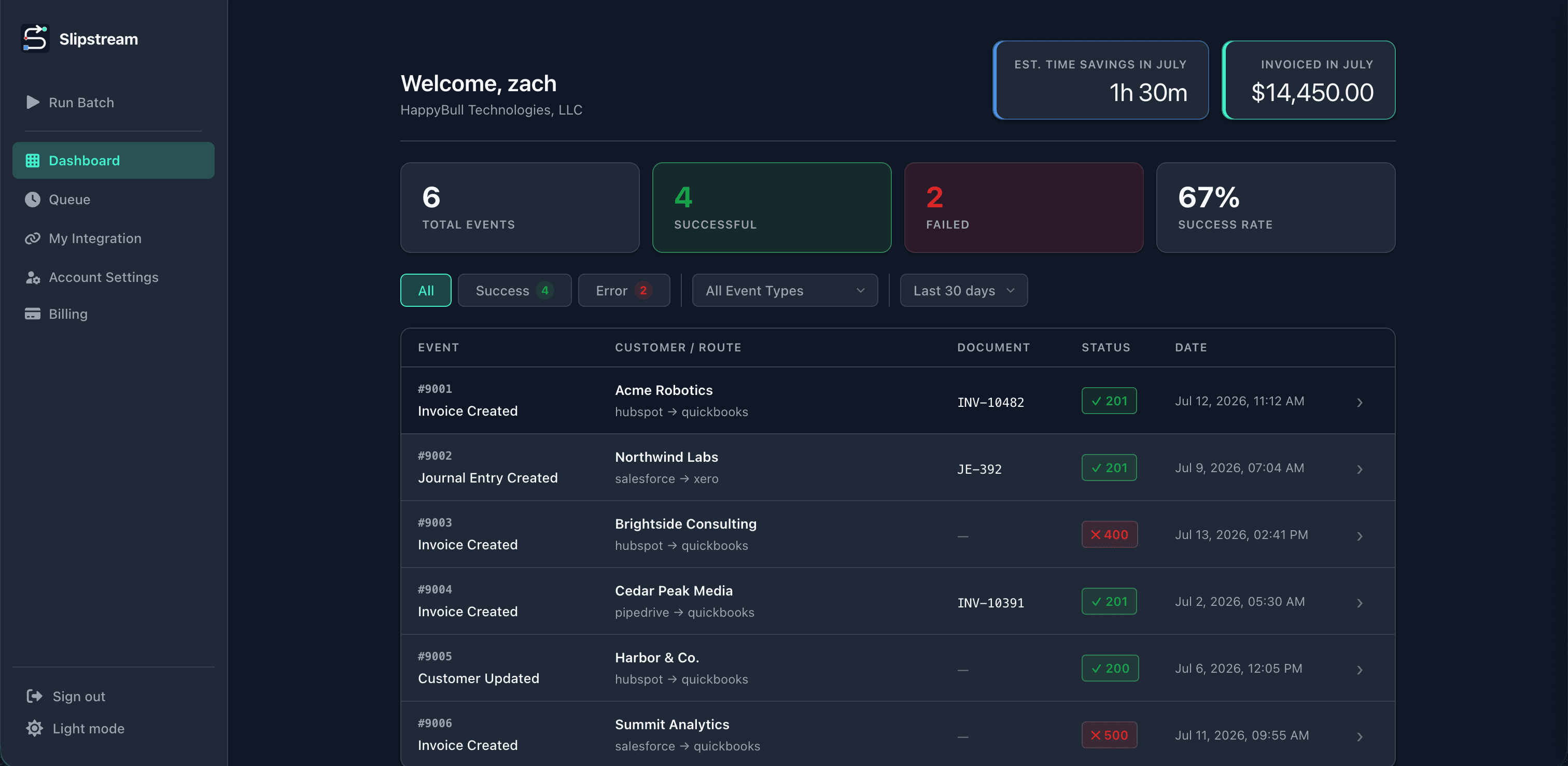
See which deals became QuickBooks invoices, what failed, and why — with time savings at a glance.
Pipedrive → QuickBooks
Pipedrive to QuickBooks integration — built and mapped by our team — for scheduled batch invoicing, custom deal fields, and finance review.
How it works
Watch how closed deals in Pipedrive become QuickBooks invoices — without manual entry.
Inside Slipstream
We build and map the Pipedrive integration for you. You monitor connections, review syncs, and manage day-to-day invoicing.
See which deals became QuickBooks invoices, what failed, and why — with time savings at a glance.
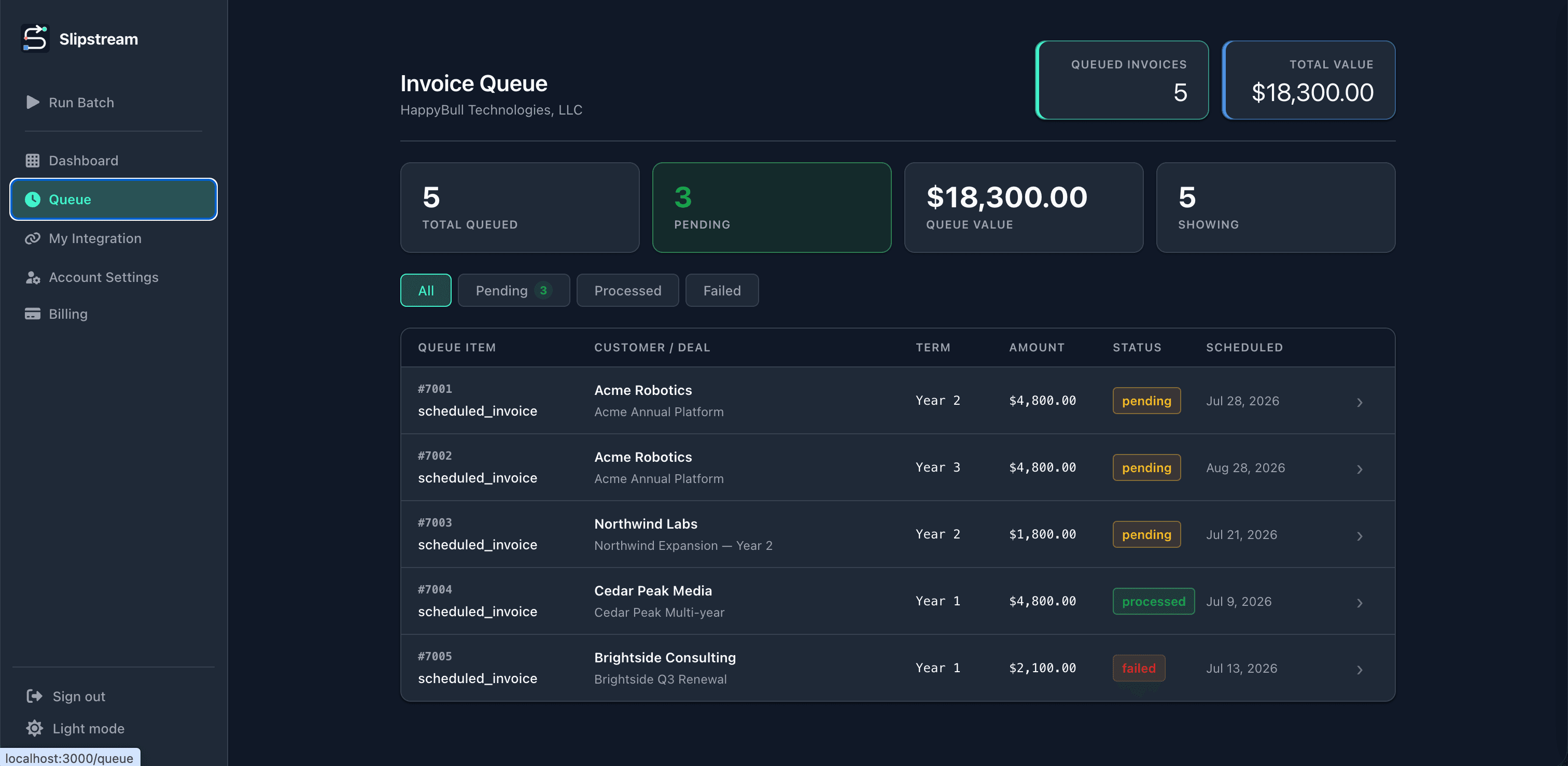
Upcoming invoices from Pipedrive land in a queue so finance can check amounts and timing before billing runs.
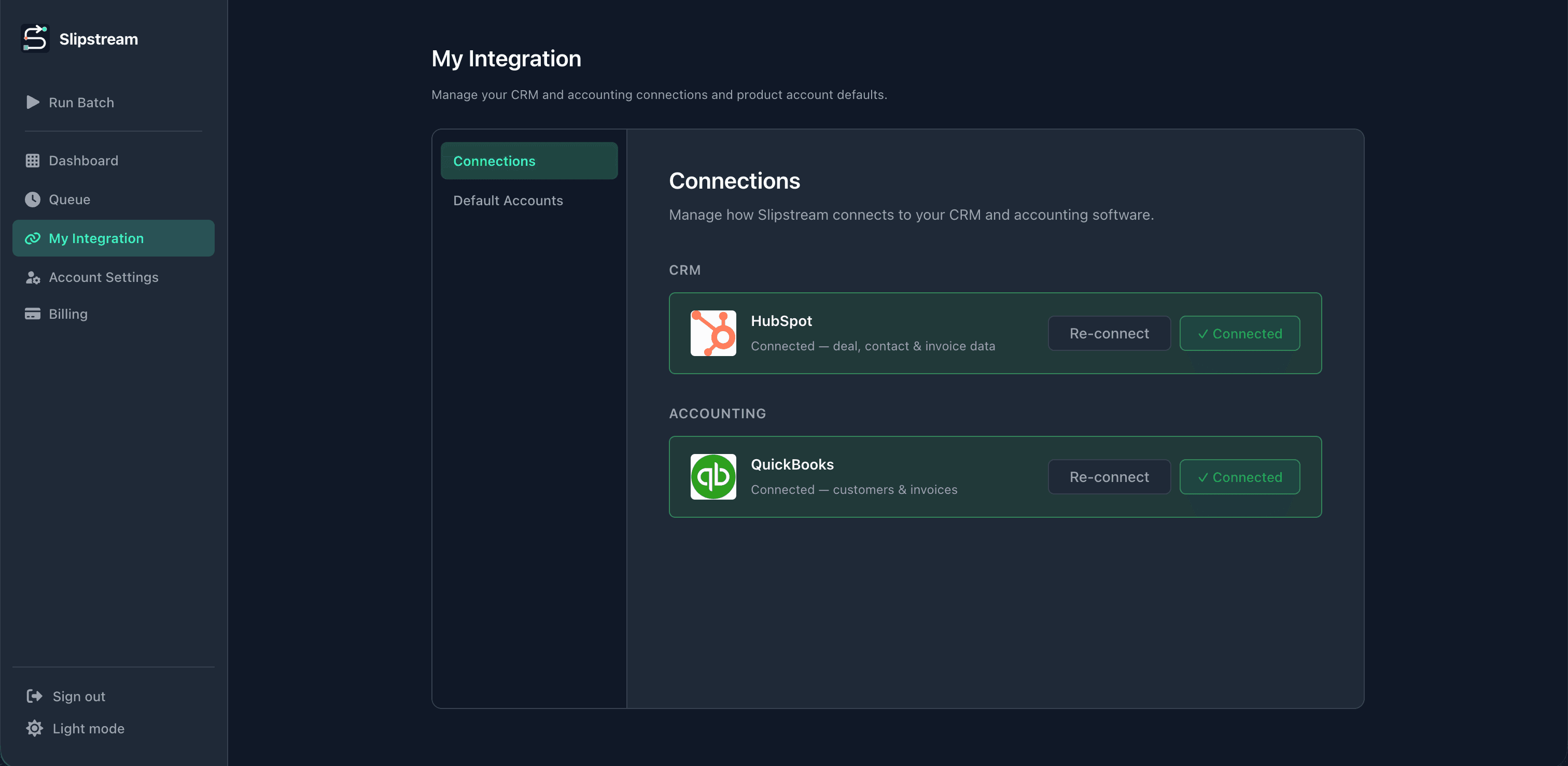
Disconnect, reconnect, or check connection status for Pipedrive and QuickBooks anytime. Our team handles mapping and workflow buildout — you keep the connections healthy.
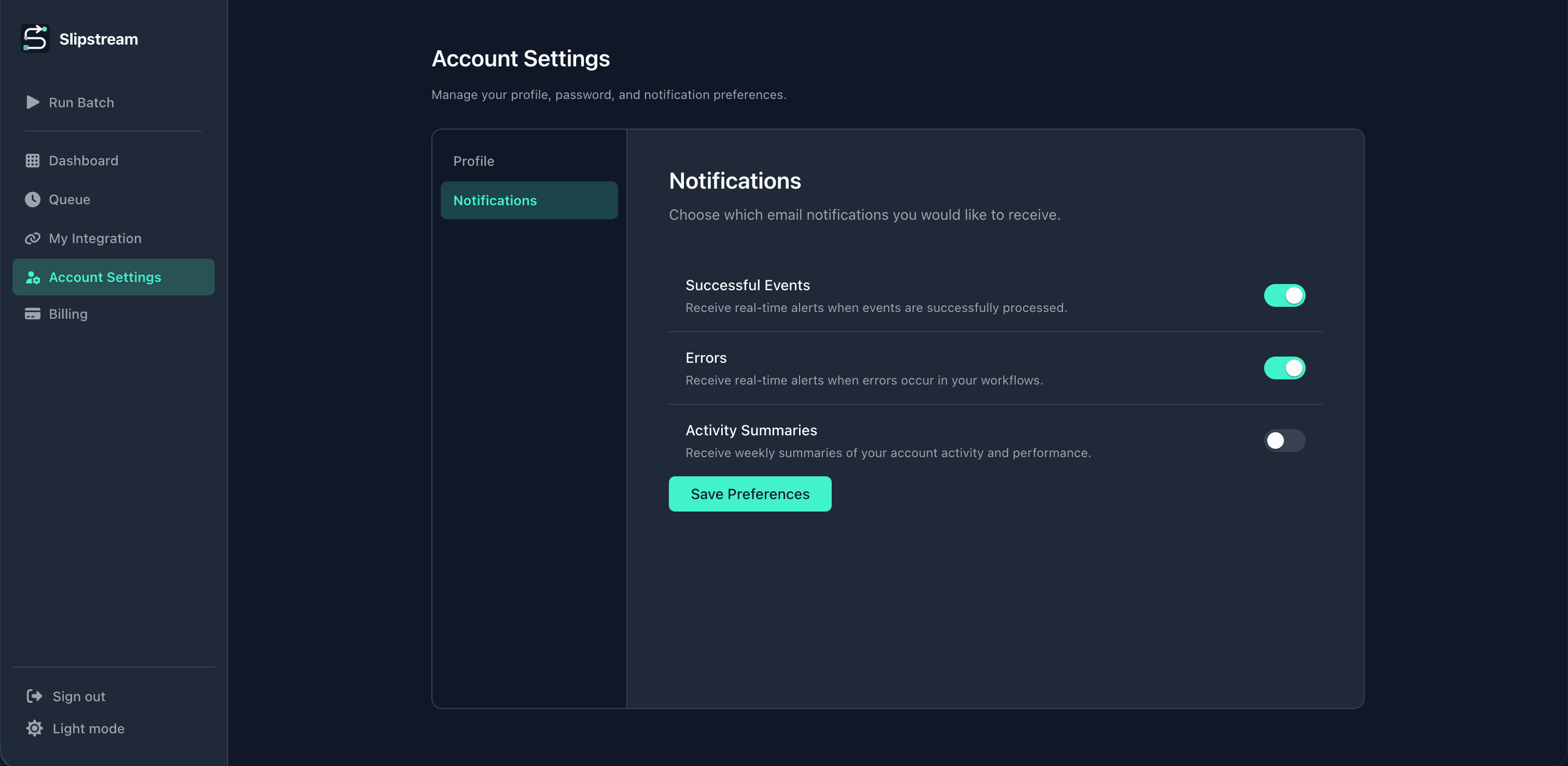
Choose email alerts for successful invoices, sync errors, and weekly summaries — or keep the noise off.
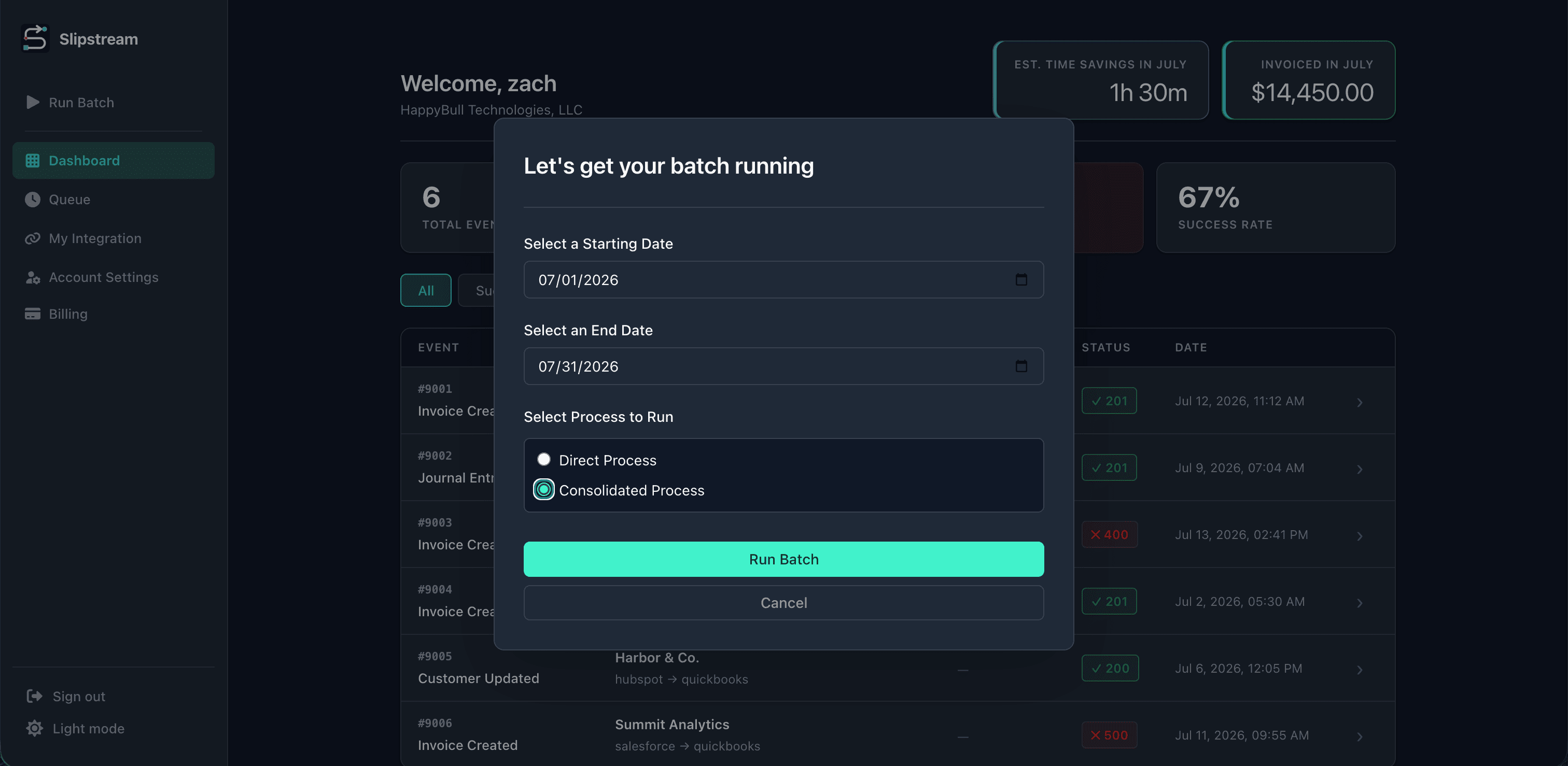
Run date-range batches for backlog or reseller partners — consolidate multiple won deals into cleaner partner billing.
Features
When a Pipedrive deal is won, Slipstream creates the QuickBooks invoice on your terms — instantly, queued, or in a batch. We configure the workflow; you monitor the connection.
Invoice won Pipedrive deals immediately, or run scheduled batches when finance is ready — including reseller consolidation.
Our team maps Pipedrive deal fields to QuickBooks invoice fields — customized to your stages, products, and custom fields.
Know when Pipedrive invoices are created or when a deal is missing data that blocks QuickBooks.
See what’s scheduled to bill from Pipedrive before it hits QuickBooks — amounts, terms, and status included.
Failed runs tell you which deal needs attention. Fix the fields, then retry — no email archaeology.
Stop copying won deals into QuickBooks. Teams cut invoicing time by up to 90% depending on volume.
Why Slipstream
Native Pipedrive ↔ QuickBooks covers simple won-deal invoicing. Slipstream adds white-glove custom deal-field mapping, scheduled batches, a review queue, and clearer fixes when pipeline data is incomplete.
| Capability | Native Pipedrive sync | Slipstream |
|---|---|---|
| Custom Pipedrive deal fields | Limited | Yes |
| Scheduled & consolidated batch runs | No | Yes |
| Invoice review queue | No | Yes |
| Progress billing across stages | No | Yes |
| Actionable sync error alerts | Limited | Yes |
| Basic won deal → invoice | Yes | Yes |
Pricing
Choose your implementation tier — every plan includes the same $50/month subscription.
$250one-time setup
+ $50/ month
Guided integration setup with the essentials for a clean CRM-to-QuickBooks handoff.
$500one-time setup
+ $50/ month
Hands-on help optimizing your CRM, sales process, and integration workflow.
$1,000one-time setup
+ $50/ month
Deep CRM and sales process optimization for complex billing workflows.
All tiers include unlimited integration usage, ongoing support, and access to Slipstream activity logs.
FAQ
Everything you need to know about automating invoices from your CRM into QuickBooks.
Slipstream watches your CRM for closed-won deals and creates the matching invoice in QuickBooks automatically. Your team stops copying deal data by hand — billing starts the moment the deal closes.
HubSpot, Salesforce, Pipedrive, GoHighLevel, Monday.com, and ConnectWise today, with more integrations on the roadmap. Browse our integrations directory for CRM-specific workflows, or HubSpot, Salesforce, and Pipedrive detail pages to start.
Most teams reclaim 12+ hours per month on manual invoice entry. High-volume teams often save up to three days. Use our time savings calculator on the homepage to estimate your team's numbers.
You authorize Slipstream through QuickBooks OAuth — the same secure flow you use for other accounting apps. We sync customers, line items, and invoice fields directly into the company file you choose.
Our team builds and maps your integration during white-glove onboarding. Your part is connecting CRM and QuickBooks accounts and confirming the workflow with us — typically a short connection flow once the Scope of Work is approved. Our how-it-works guide covers each step.
No. Mapping and workflow buildout are done by our team. You connect your CRM and QuickBooks via OAuth, monitor connection status, and review sync activity in the dashboard. See how it works for the full walkthrough.
When a deal hits the stage we configured with you — closed won, contract signed, or whatever you choose — Slipstream reads the deal, builds the invoice from your field mappings, and creates it in QuickBooks. You get a log entry for every run.
Yes — during white-glove onboarding. Our team maps CRM properties to QuickBooks fields (customer name, line items, amounts, due dates, memos, and more) based on how you bill. You manage connections and monitor sync health; we own the mapping design.
Slipstream supports custom field mappings, trigger stages, draft vs sent invoices, and batch runs. During onboarding we walk through your deal flow and configure the workflow to match how your team actually bills. Request a demo to review your workflow with our team.
Slipstream creates draft or sent invoices depending on your settings. Many teams start with drafts so finance can spot-check the first few runs, then switch to automatic send once mappings are trusted.
Failed runs show up in your event log with the exact error — missing customer, invalid line item, auth expired, and so on. Fix the underlying issue in your CRM or adjust your mappings, then retry.
Yes. Batch runs let you process a CSV of deal IDs or a date range so you can catch up on backlog without manual entry. Useful when you turn automation on mid-quarter.
No — it removes repetitive data entry so your team can focus on review, collections, and exceptions. Think of it as the automation layer between sales closing and clean books.
General automation tools can wire CRM to QuickBooks, but you still build and maintain every step. Slipstream is purpose-built for invoicing: pre-built mappings, invoice-specific error handling, and a dashboard built for finance workflows.
Connections use OAuth — we never ask for your CRM or QuickBooks password. Data in transit is encrypted, access is scoped to what invoicing requires, and you can disconnect integrations at any time. Read more in our privacy policy.
We store OAuth tokens required to keep integrations connected, encrypted at rest. We do not store plain-text passwords, and tokens can be revoked from your CRM or QuickBooks admin at any time.
Each Slipstream workspace connects to one QuickBooks company file. Teams with multiple entities typically run separate workspaces or route deals by pipeline — request a demo and we can walk through your structure.
We offer three one-time implementation tiers — $250 Essentials, $500 Standard, and $1,000 Advanced — with varying levels of help optimizing your CRM, sales process, and integration setup. Every tier includes the same $50/month subscription for unlimited platform usage. See pricing for full details, or request a demo and we'll recommend the right fit.
Yes. There are no long-term contracts on the monthly subscription. Your integrations stay active through the end of your billing period.
We offer a guided trial during onboarding so you can run real test deals before you commit. Request a demo and your account rep will outline trial length and what's included for your stack.
Email support for all customers, plus live onboarding for new accounts. Mapping questions, retry help, and integration troubleshooting are included. Start with our setup guide or book a walkthrough with our team.
Book a demo and see real-time vs batched Pipedrive invoicing — configured by our team for your pipeline.